This section describes how the manager of the employee the leave was requested for is informed of the leave requested.
Roles: Report To / Manager
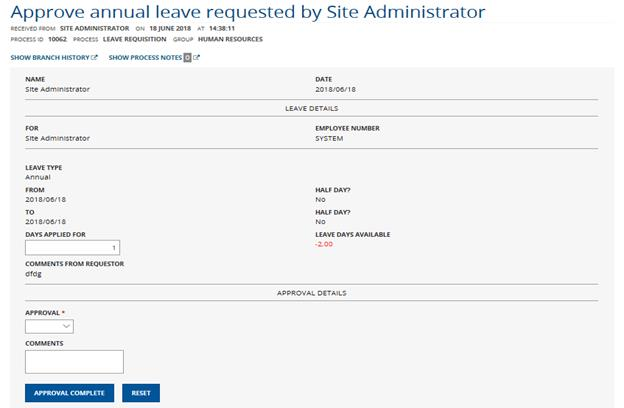
The manager will log onto the [Company] FlowCentric website and navigate to the Pending >> Approve Leave menu option and the form will be shown to the employee, as seen in Image 8.
Image 8 – Approve Leave
With reference to the table in 3.2.1 above, display the visible objects per Leave Type.
The manager will receive the Approve Leave notification and must check the information and if the “Days Applied For” is incorrect this can be changed. Once verified the manager must select an option from the “Approval” dropdown list, the options are:
• Approve
• Decline
If “Decline” is selected then “Comments” becomes a required field, otherwise you do not need to enter any comments. Once all the details have been filled in, click the “Approval Complete” button.
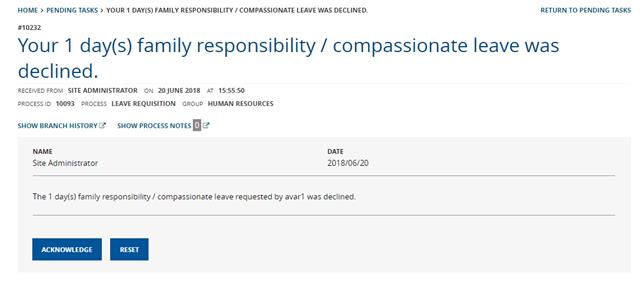
If the leave request is declined, then a notification is sent to the originator to advise the employee that the leave was declined which must be acknowledged, as seen in Image 9.
Image 9 – Notification (Leave Declined)
If the leave is approved, then the Update HR System activity is triggered.