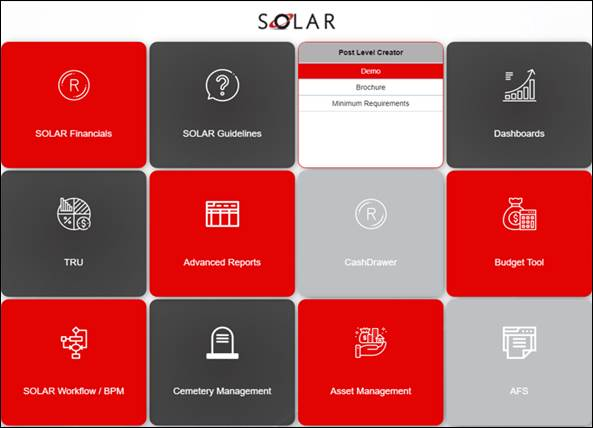
Access to the application is provided via the PortalSSO Tiles Menu for central point of access and authentication of the business web applications.
· This will be dependent on whether the PortalSSO Tiles Menu has been implemented at the business
· If not yet implemented, users will access the module via the URL provided
· Access in EA is based on the following ‘Roles’ linked to each user:
· System Administrator
· Capturer
· Reviewer
· Business Manager
· Financial Manager
Step 1: Example to Access a Module
· Select the ‘Post Level Creator’ tile on the menu
· The selected tile will display various EA options including the environments that have been setup for EA
Step 1 Illustration - Accessing the application via the Tiles Menu:
Step 2: Select the environment to be accessed
· Select the correct environment to be accessed
· Test and Production environments may be listed, as may be applicable
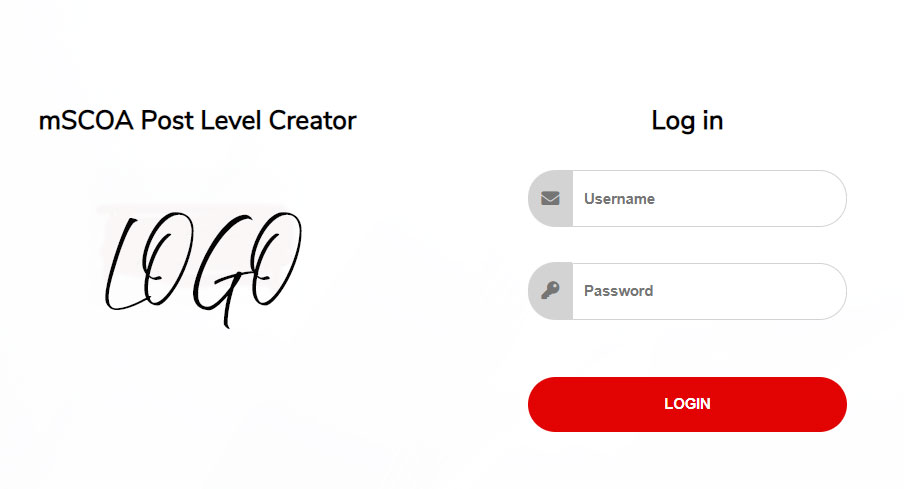
· The login screen will be displayed where AD Authentication is not yet implemented at the business
Step 3: Login Screen
· Capture the Username and Password in the fields provided
· ‘Login’ will log the user into the module
Step 3 Illustration – Login Screen:
Step 4: User Dashboard
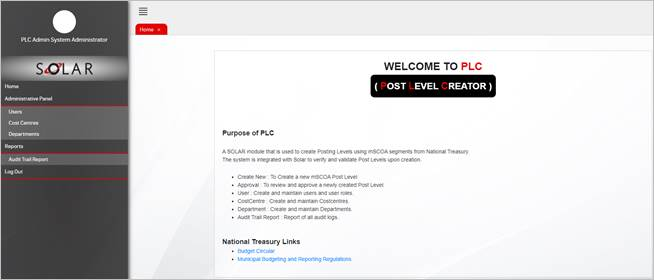
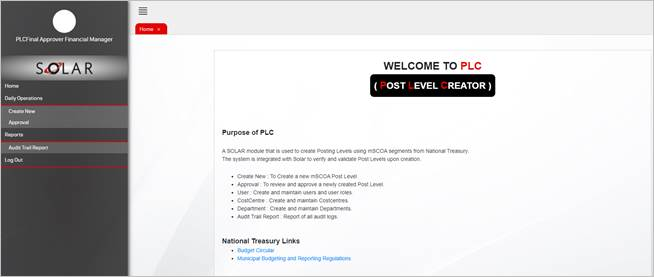
The user dashboard is displayed when the user has successfully logged into the module, with the following main functions:
· Daily Operations
· Administrative Panel
· Note that what is displayed on the function menu on the left side of the screen will be based on the role of the user who currently logged into EA:
· System Administrator
· EA Capturer
· EA Reviewer
· Various EA Approvers
Step 4 Illustration - User Dashboard for role ‘System Administrator’:
Step 4 Illustration - User Dashboard for role ‘Final Approver – Financial Manager’: