This section describes how a user captures their leave on the system.
Roles: Everyone
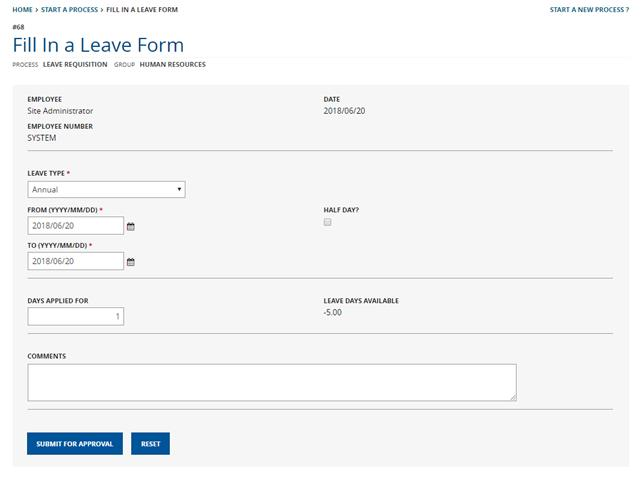
Any registered employee will log onto the [Company] FlowCentric website and navigate to the Start A Process >> Human Resources >> Leave Requisition >> Fill in a Leave Form menu option and the form will be shown to the employee, as seen in Image 3.
Image 3 – Fill in a Leave Form
The employee will select an option from the “Leave Type” dropdown list. The different options are:
• Annual
• Family Responsibility / Compassionate
• Maternity
• Sick
• Study
• Unpaid (Time Off Without Pay)
• Other
The below objects will be hidden/visible depending on the “Leave Type” selection made:
Leave Type
Note
(Visible)
Leave Type
Note
(Invisible)
Leave Days
Available
(Visible)
Leave Days
Available
(Invisible)
Attach Medical
Certificate (Visible)
Attach Medical
Certificate (Invisible)
Maternity
·Annual
·Family Responsibility
/ Compassionate
· Maternity
· Sick
· Study
· Unpaid (Time
Off Without Pay)
· Other
Annual
·Family Responsibility
/ Compassionate
· Maternity
· Sick
· Study
· Unpaid (Time
Off Without
Pay)
· Other
Sick
·Annual
·Family Responsibility
/ Compassionate
· Maternity
· Sick
· Study
· Unpaid (Time
Off Without
Pay)
· Other
The ‘Leave Type Note’ will use the following wording:
For Paternity Leave please submit a request for Family Responsibility Leave, Maternity Leave is only available to female employees
The “Leave Days Available” Reference Label control will update automatically with the number of days remaining for the employee for that type of leave.
The employee must then select the dates by either typing the dates in the text boxes or selecting from the calendar control that appears. The “Days Applied For” Textbox control will automatically update with the number of days. However, this can be changed if not calculated correctly.
If you are taking a “Half Day” on either of the dates you have selected, then click on the checkbox control next to the date for which you are taking a half day.
Any comments the user wishes to enter can be made or not and the activity is submitted, the next activity triggered is Approve Leave.