Step 1: Login
· Access to the application is provided via the PortalSSO Tiles Menu for central point of access and authentication of the business web applications.
· Select the relevant application tile on the menu
· Select the EA environment to be accessed
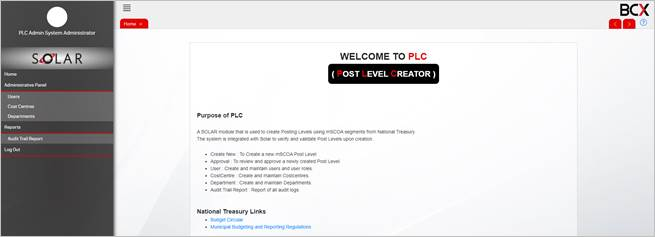
· Admin User will be logged into the module
Step 1 Illustration – Admin User Dashboard:
Step 2: Create Users
· Select menu option ‘Users’
· ‘Users’ capture screen will be displayed
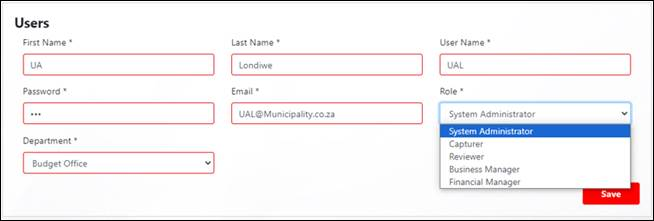
· Capture the required user details in the fields provided
· ‘Roles’ note the roles that are provided in the drop-down list:
· System Administrator
· Capturer
· Reviewer
· Business Manager
· Financial Manager
· ‘Department’ select the department to be linked to the user from the drop-down list
· ‘Save’ the captured user details
Step 2 Illustrate the capture of Users:
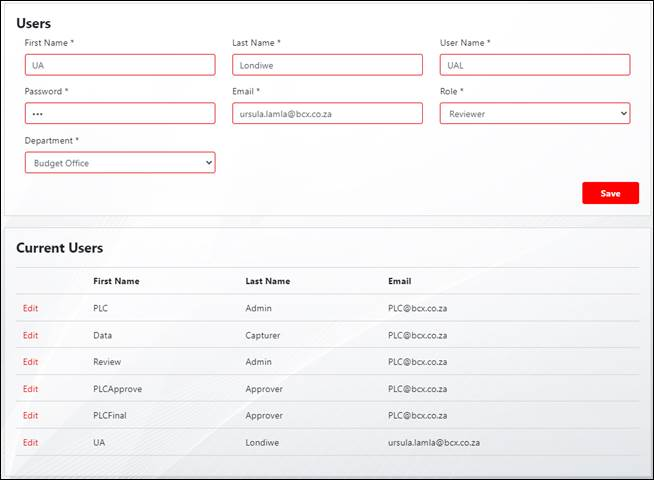
Step 2 Illustration – The saved user is added to the list of ‘Current Users’: